Discover & configure devices¶
From "no devices yet" to a fleet that's grouped, configured, and ready to drive. This is the first workflow after you've confirmed the gateway badges are green on the WebUI Overview.
Audience. Operators setting up a deployment. For the on-screen map of every bar and badge, read the WebUI Overview first; for authoring effects afterwards see RL Presets and Scene authoring.
A few terms used throughout (full list in the Glossary):
- Device — one piece of RaceLink hardware (a WLED node, a starting-block, …), identified by its MAC; the table shows the last 6 hex for brevity.
- Group — a named bucket of devices, usually by physical location ("Pit Wall", "Start Line"). Most scene actions target a group. A group holds devices from one network only. A new or emptied group has no network yet and adopts the network of the first device that joins it — which also decides whether it is an RF or an Ethernet group. Remove the last device and the group reverts to unassigned.
- Network — the gateway + radio (RF) or the host's own NIC (Ethernet) that a group's devices live on. One network per group.
Network badges. Every device row and every assigned group shows a
small coloured network badge naming its network, with a kind icon —
a radio glyph for RF, a network glyph for Ethernet — so the two
kinds read at a glance. The badge appears in the device table, the
Groups sidebar, the Manage groups dialog, and the scene editor's
Select target groups picker. Static groups (Unconfigured,
All WLED Nodes) and empty/unassigned groups carry no badge — they
belong to no single network.
Discover devices¶
Click Discover in the menu band.
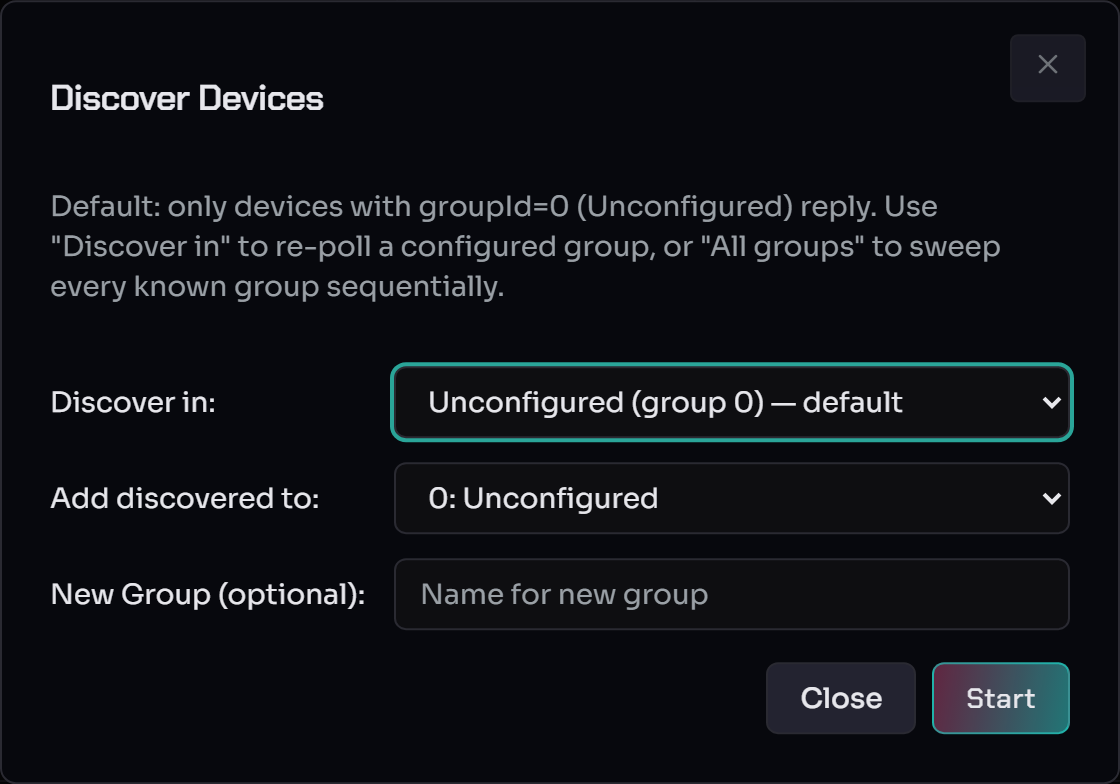
- Discover in — which group to poll. The default, Unconfigured (group 0), only reaches devices that aren't yet assigned — the right choice for a first run. Pick a configured group to re-poll it, or All groups to sweep every known group sequentially.
- Add discovered to — the group newly-found devices are assigned
to (default
0: Unconfigured— you'll move them later). - New Group (optional) — name a group to create and drop the discovered devices straight into it.
Click Start. The host fires a broadcast and waits a few seconds for
replies; the master bar's task line shows progress. As
IDENTIFY_REPLY packets arrive the device table populates over SSE.
Closing the dialog does not cancel the sweep.
"Discovered 0 devices"¶
- The devices are off, out of range, or paired to a different gateway. Check the gateway badge: if it cycles TX → RX → green, the host did transmit and open a window, but nothing replied.
- Each node pairs to one gateway by MAC at first boot. To un-pair a device that's bonded to a different gateway, use Forget master MAC in the Node Config dropdown, then re-discover. See WLED master pairing for the full model.
- The device may be stranded on another channel — run a Channel Scan.
Create groups and assign devices¶
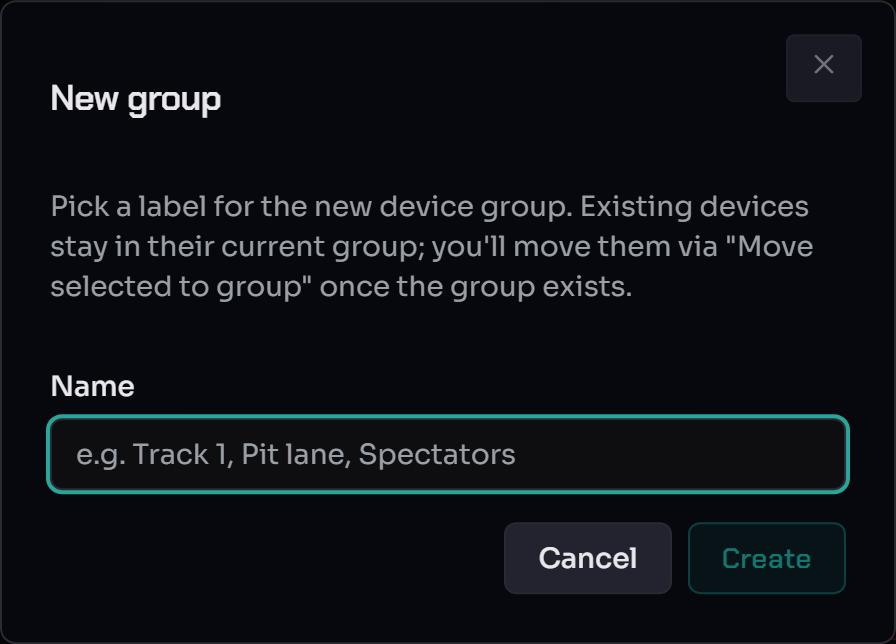
Click the + in the Groups sidebar, name the group ("Pit Wall", "Start Line", …), and Create. Existing devices stay where they are — you move them in next.
Bulk actions¶
Tick the devices you want in the table, then use the bulk-actions toolbar that appears above it:

Pick the destination group from Move selected to group and click
Move. The confirmation shows the count and target for a sanity
check — it sends a SET_GROUP packet per device and waits for each
ACK. If a device is offline its ACK times out and that one
reassignment is recorded as failed; the others continue. Rename…
relabels the selected device.
Boundary rule. A bulk move that would mix devices from different networks is rejected (HTTP 400). Moving into Unconfigured (group 0) is always allowed — it's the cross-network sink. See Multi-Network §Boundary enforcement.
Manage groups (reorder + move between networks)¶
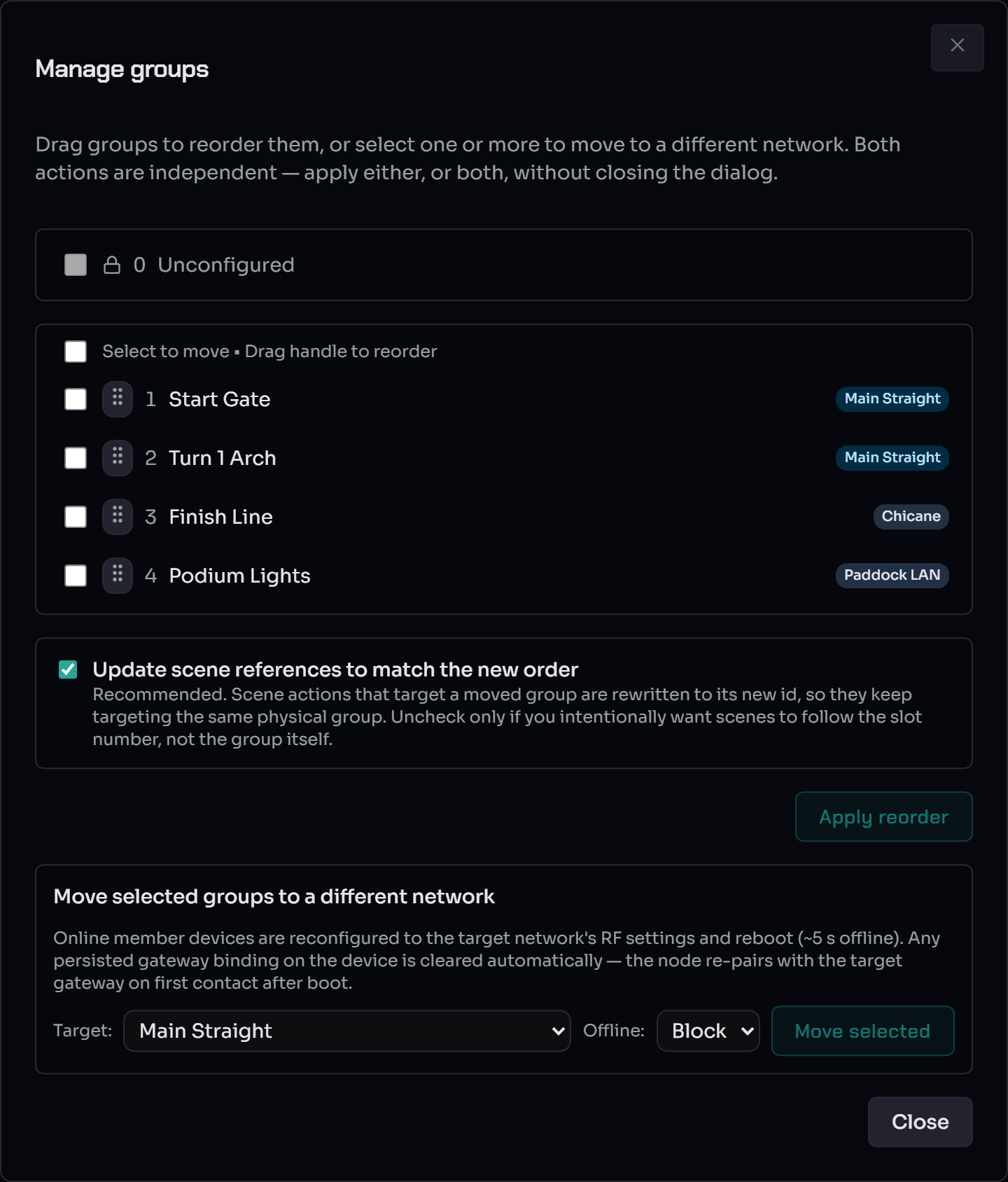
The ↕ Manage groups button beside + opens a dialog that combines two independent actions — apply either or both without closing it:
- Reorder — drag the handles to change group order. Leave Update scene references to match the new order ticked (the default) so scene actions follow the group by its new id; untick only if you want scenes to follow the slot number instead.
- Move groups between networks — tick one or more groups (their
current network badge is shown on the right, if assigned), pick a
Target network, and click Move selected. Static groups
(
Unconfigured,All WLED Nodes) are network-agnostic and can't be moved; an empty group shows no badge until a device joins it. Online member devices reconfigure to the target network and reboot (~5 s offline), then re-pair to the target gateway on their own. The full offline-handling (Block / Skip / Force) is in Multi-Network §Move groups between networks.
Re-sync group config¶
After devices are in real groups, Re-sync group config in the menu band re-broadcasts every device's stored group assignment to the network — the recovery action when nodes were reflashed or moved and their in-radio state drifted from the host's view.
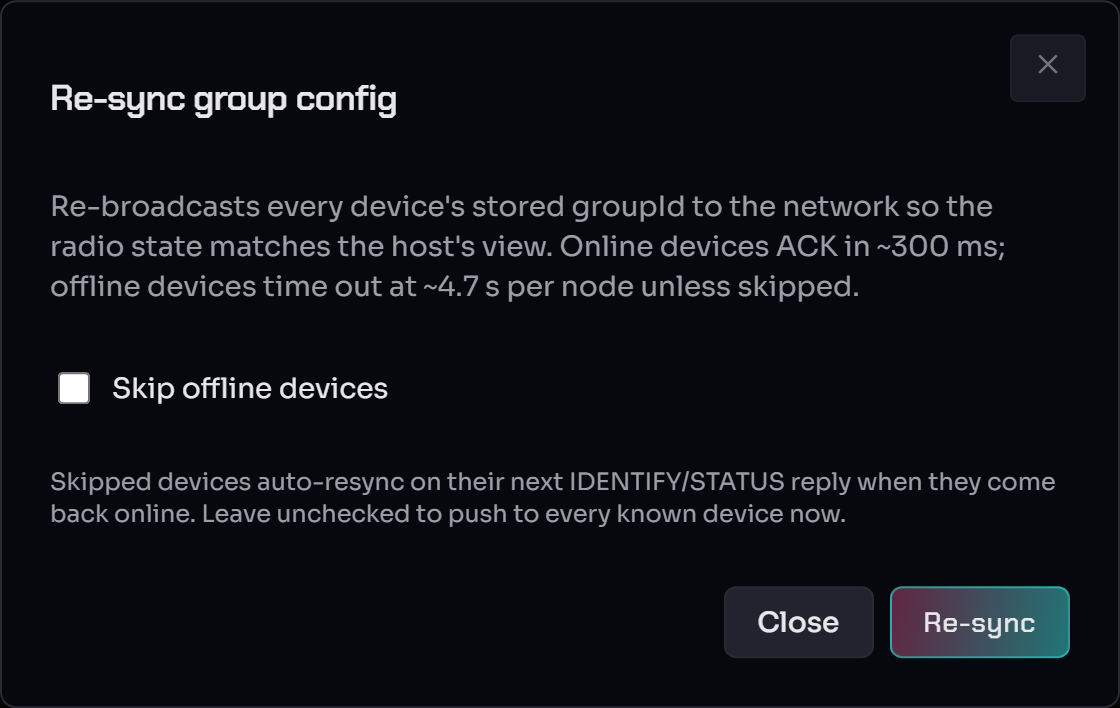
Online devices ACK in ~300 ms; offline devices time out at ~4.7 s each unless you tick Skip offline devices (skipped devices auto-resync on their next identify/status reply when they come back online). Leave it unchecked to push to every known device now.
Devices that won't auto-pair — Pair Assistant¶
When pre-existing devices don't pair after a gateway change, open the Pair Assistant (the wrench icon, the reconnect banner, or Host Settings). It walks four recovery cases — re-pair on the current settings, migrate devices from old to new settings, bring the gateway to the devices' settings, or recover unknown settings. See Multi-Network §Setup-Change Assistant.
Configure devices (Specials)¶
The Specials button in each device row opens the per-device Device Options dialog.
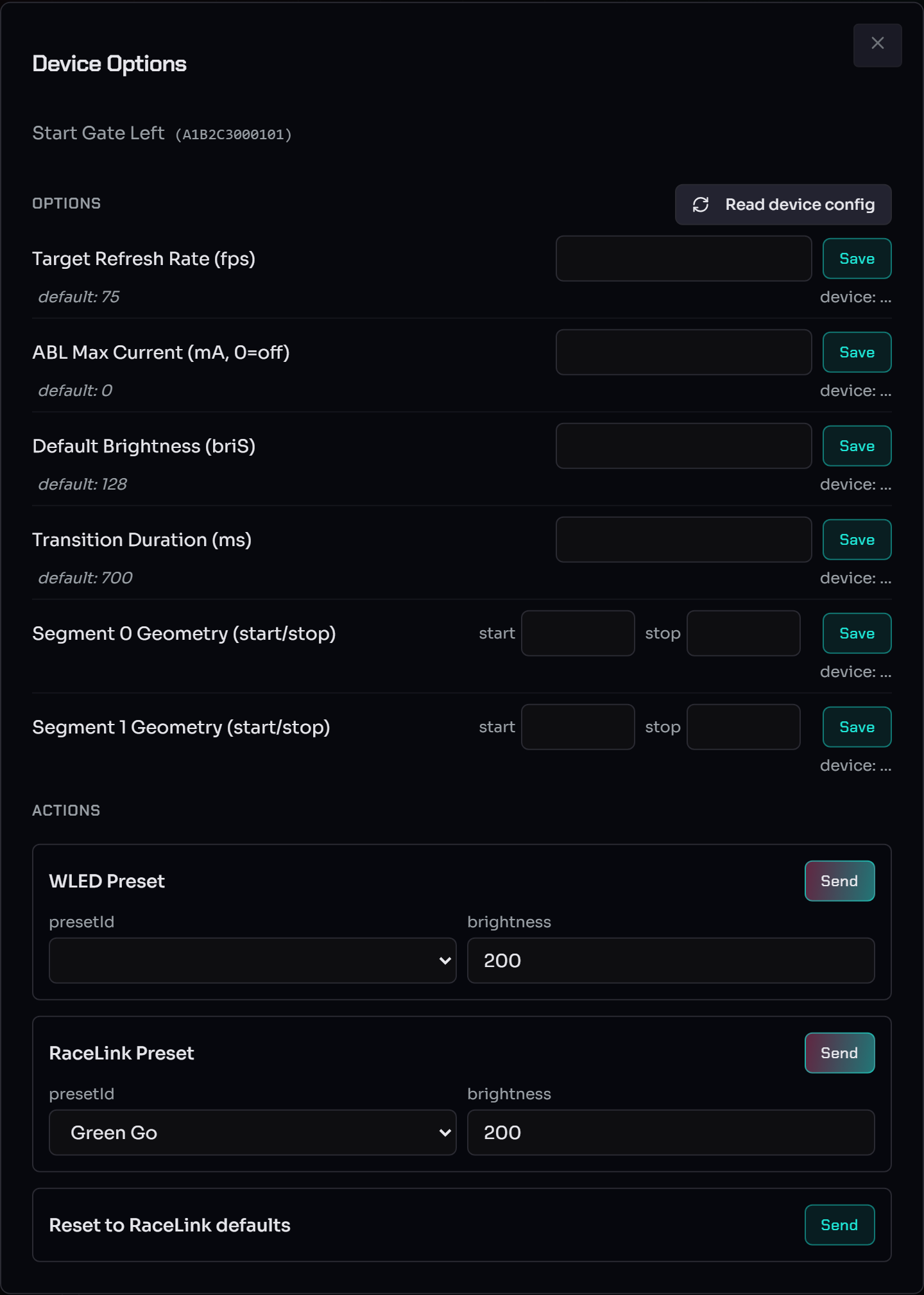
Settings are grouped into per-capability sections. WLED nodes expose
LED properties (Target Refresh Rate, ABL Max Current, Default
Brightness briS, Transition Duration, Segment geometry);
starting-blocks show their slot layout; etc. Each row carries its
declared schema default as italic helper text.
Live read on open + divergence resolution¶
When the dialog opens, the host issues one
OPC_GET_CONFIG
per property and shows the device's live value under each row:
device: <value> ✓— the live value matches the host's stored intent. Nothing to do.device: <value> ⚠— the device disagrees. Two compact buttons resolve it:- Push host — re-send the host's stored value, overwriting the device.
- Import device — adopt the device's reported value into the host's database (no wire packet sent).
device: ?plus Retry — the live read timed out (~1.5 s); Retry sends a freshOPC_GET_CONFIG.
Save — applies at runtime, no reboot¶
Edit a value and click Save. The host sends OPC_CONFIG, waits for
the device's ACK, and persists the value. No follow-up read is
needed — the ACK proves the device stored it. Every property change
applies immediately at runtime (FPS via setTargetFps(), ABL via
setMilliampsMax(), geometry via setGeometry(), transition via
transitionDelayDefault); the Default Brightness (briS) row also
snaps the live brightness. The cfg.json is written on the next
main-loop iteration so the change survives a reboot.
While the save is in flight (~500 ms) the row shows a small spinner;
once the host's database catches up it resolves to device: <value> ✓.
A genuine failure (ACK timeout, offline) surfaces a task-error toast.
Properties vs Methods¶
The WLED section carries two kinds of entries (wire view: opcodes §"Properties vs Methods"):
- Properties — persistent values with input fields and Save buttons (the rows above).
- Methods — one-shot actions:
- WLED Preset — apply a numeric WLED-preset slot.
- RaceLink Preset — apply a host-side RL preset by id.
- Reset to RaceLink defaults — destructive maintenance action;
clears every host-set override AND applies the RaceLink baseline
at runtime (FPS 75, ABL 0, briS 128, transition 700 ms, segments
collapsed to a single full-strip
seg[0]). Confirm-gated; after success the dialog re-reads every property. All rows match the new defaults except the segment rows — the host can't know the strip length, so click Import device on each segment row to adopt the device's actual geometry.
Node config — single-shot commands¶

The Node Config dropdown sends a single command to exactly one selected device:
- WLAN AP open / closed — open or close the node's WLED access point.
- Forget master MAC — drop the device's bond with the current gateway. The next discovery re-pairs it to whichever gateway sent the broadcast — useful when migrating devices between gateways, confusing if clicked mid-race. See WLED master pairing.
- Reboot node — restart the device.
It refuses to act unless exactly one device is selected (the hint text spells this out).
Config display (column toggles)¶

The Config display toggles choose which device-config columns the table renders (MAC filter, MAC filter persist, WLAN AP open, …) so you can surface only the fields relevant to the task at hand.
See also¶
- WebUI Overview — the on-screen map and the healthy-start checklist.
- Firmware updates & WLED presets — OTA flow and the WLED Presets uploader.
- RL Presets / Scene authoring — authoring the effects you fire on these devices.
- Multi-Network operator guide — networks, Channel Scan, Pair Assistant, moving groups between networks.
- Troubleshooting — discovery / bulk-set / pairing failure modes.